Assign a Role to a User Account
A Role is a collection of permissions that controls what features or resources a user can access, and what actions they can perform (view, create, update, and so forth). From the Roles tab of the User Account Details screen, an administrator can assign one or more Roles to a User Account.
To assign a Role to a User Account:
-
Select Admin from the top navigation bar, then select Access > Console Users from the side navigation menu. The Console Users screen is displayed.
-
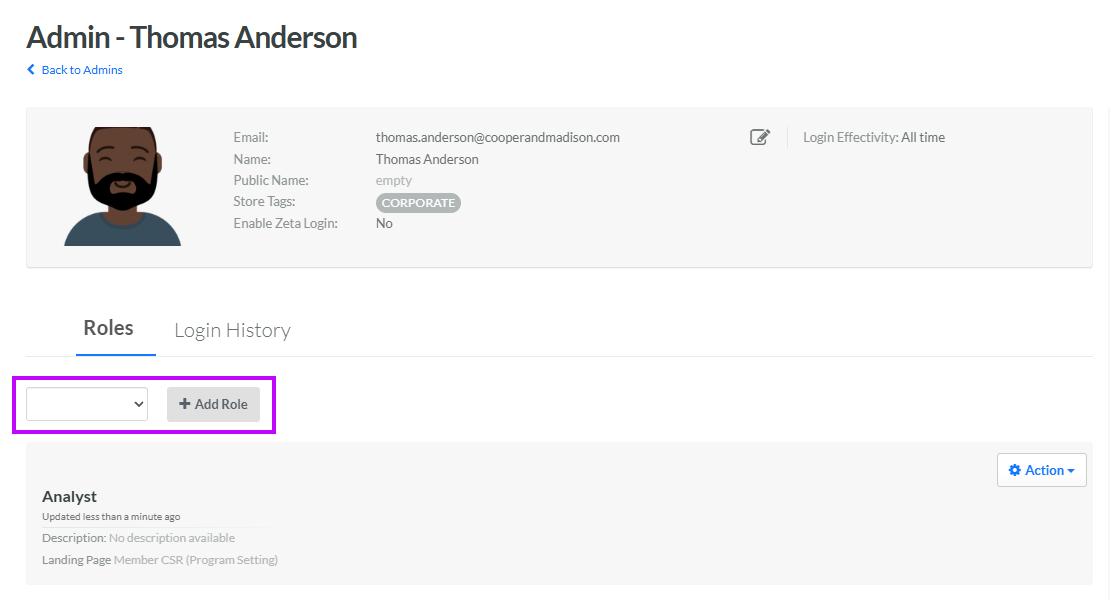
Optionally, search for and select the desired User Account (see Search for a User Account for more information on the available search options). The User Account Details screen is displayed with the Roles tab selected.
-
From the drop-down menu, select the desired Role. The selected Role is added to the list on the Roles tab.
-
Click Add Role.
-
Repeat the above steps as needed to assign additional Roles to this User Account.
Designate the Default Role
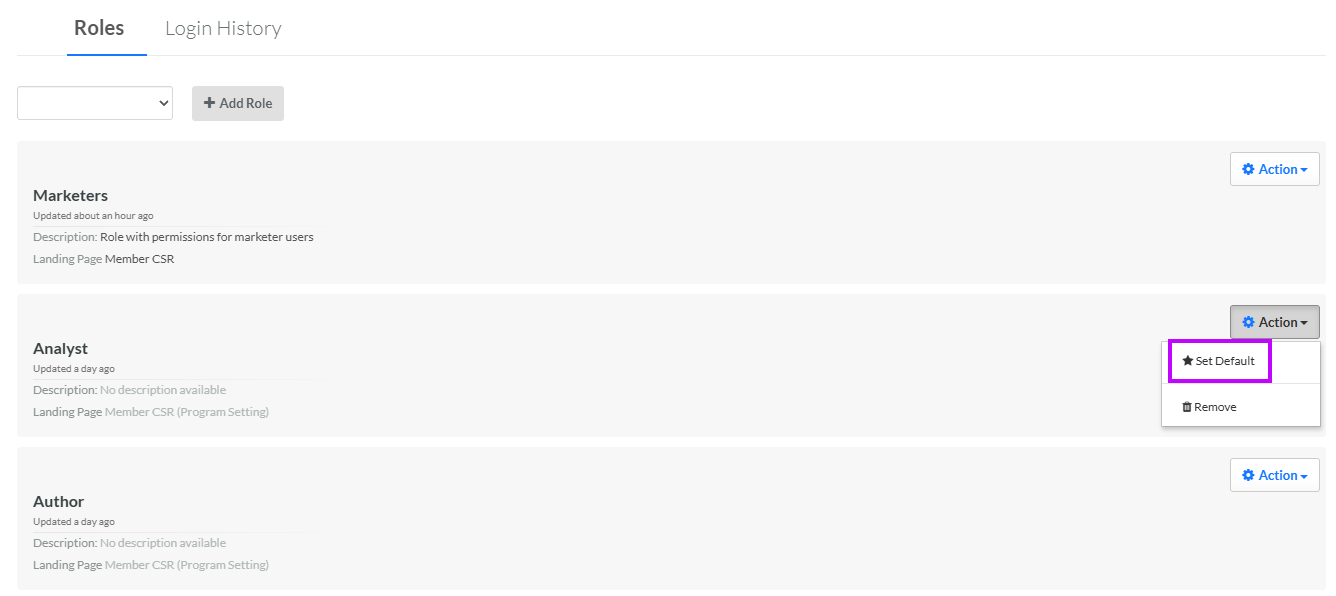
If you assign multiple Roles to a User Account, one of the Roles must be designated as the user's Default Role. If the Roles to which the User Account has been assigned have conflicting permissions, the Default Role will take precedence. In addition, administrators can assign a default landing page to a Role. A User Account that has been assigned to that Role will see the designated screen when they log into the platform. If a User Account has been assigned to multiple Roles with different default landing pages, the configuration for the Default Role takes precedence.
Note: The Default Role for a User Account is always displayed at the top of the Roles tab.
To designate the Default Role for a User Account:
-
Select Admin from the top navigation bar, then select Access > Console Users from the side navigation menu. The Console Users screen is displayed.
-
Optionally, search for and select the desired User Account (see Search for a User Account for more information on the available search options). The User Account Details screen is displayed with the Roles tab selected.
-
From the Action drop-down menu next to the desired Role, select Set Default. The selected Role is moved to the top of the Roles tab.